Drawing and Changing Shapes
Shapes add a personal element to your mechanisms and also enable you to export their designs for 3D printing or laser-cutting. These customized and compatible parts can augment your SnappyXO Robot kit hardware.
Drawing Different shapes from the Shapes Panel
Combining shapes using Multi-Select and the boolean operations from the Shapes Panel
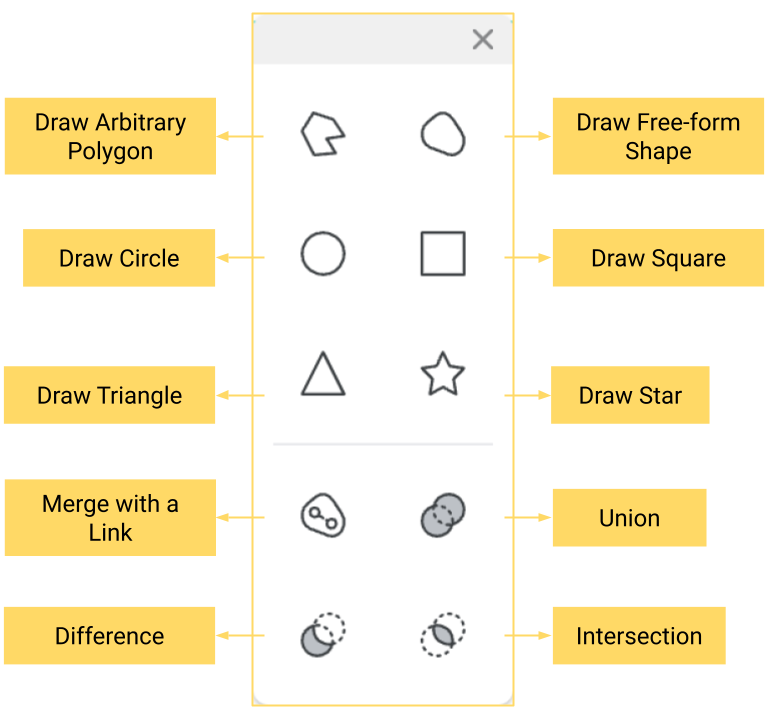
The Shape Panel
Selecting a single shape reveals the Shape Context menu using which you can change the color of the shape, duplicate them, or send them backward or forward. Sending them back or forward changes the order of the shape which is reflected in the change of their numbering. The order of the shapes has an impact on the boolean operations discussed next.
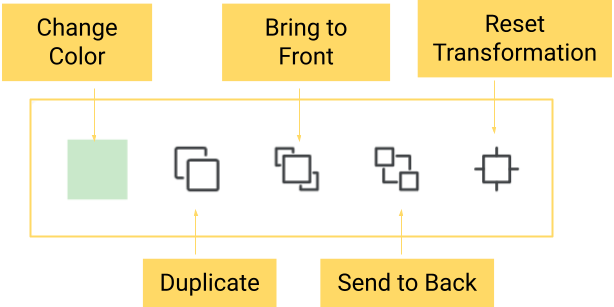
The Shape Toolbar
Operations on Shapes
Once you draw two shapes, you can perform the following operations on them.
Merge
- Start by drawing a link of any size inside any shape.
- Use the Multi-Select option to select the shape and link and then use the Merge with a link option to convert the shape into a link.
- This option creates a bonafide link with arbitrary shape. This link can be used in any mechanism.
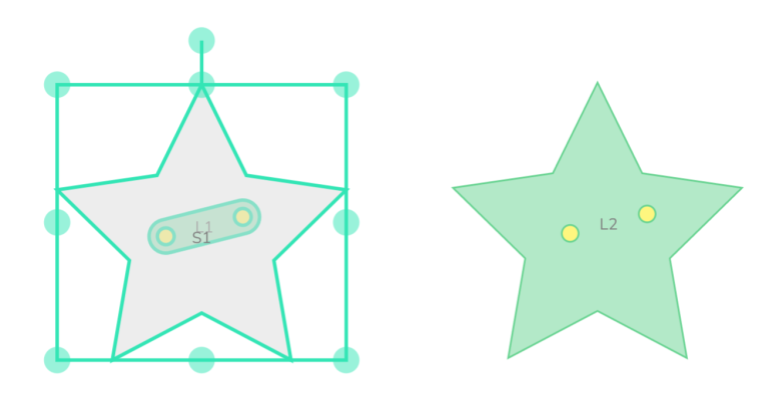
A star shape being converted into a star-shaped link with two moving pivot points
Union
- Start by drawing two shapes.
- Use the Multi-Select option to select both the shapes and then use the Union option to combine two shapes.
- The order of shapes does not matter.
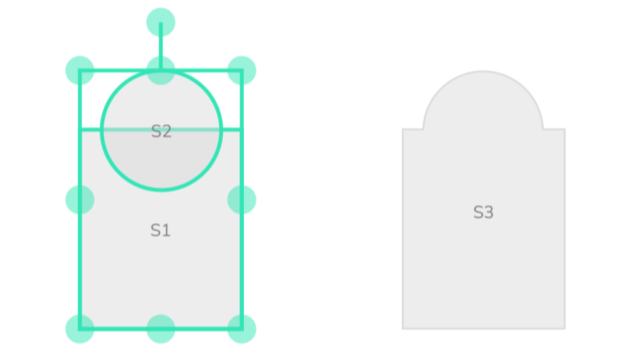
Combining two shapes using Union operation
Difference
- Start by drawing two shapes.
- Use the Multi-Select option to select both the shapes and then use the Difference option to subtract two shapes.
- The order of subtraction is determined by the shape number. Thus, the new shape is obtained by performing S_i - S_i+1.
- From the shape context menu, you can change the overlap to change the order of difference.
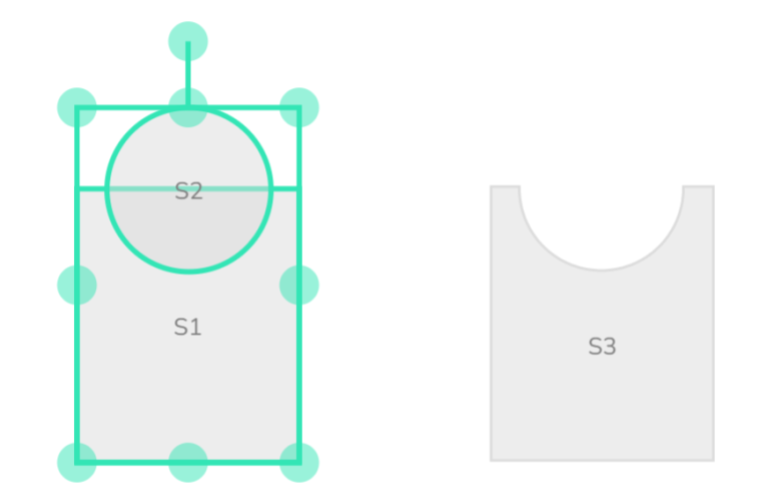
Subtracting two shapes using Difference operation: Here S2 is subtracted from S1 to get a new shape S3.
Intersection
- Start by drawing two shapes.
- Use the Multi-Select option to select both the shapes and then use the Intersection option to find a common area of the shapes.
- The order of shapes does not matter.
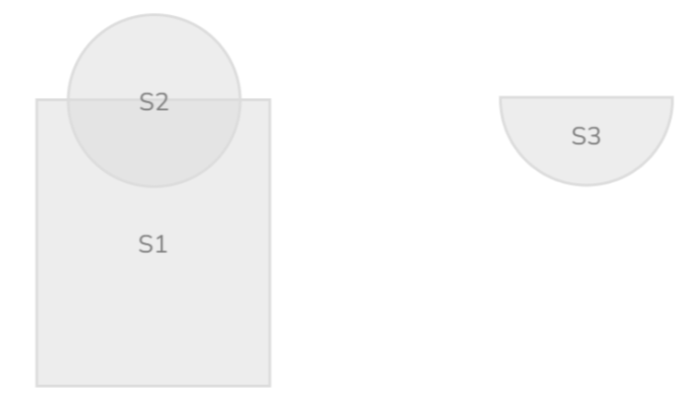
Intersecting two shapes using Intersection operation: Here a new shape S3 is formed from the common area of S1 and S2.
Note: Merge, Union, Difference, and Intersection can be performed only on a pair of shapes at a time. However, you can repeat the process on any new pair of shapes.