Toolbars
Joint Toolbar
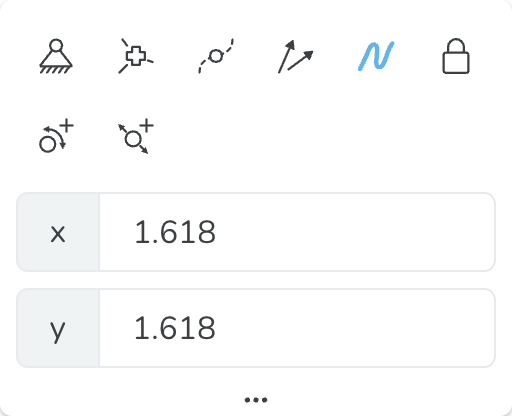
| Icon | Name | Description |
|---|---|---|
 | Ground | Fixes the joint so it won’t move from its current position during motion. |
 | Regular/Welded Joint | Frees/Welds the joint depending on its current type. A welded joint provides a rigid connection between two links. |
 | Show/Hide Curve | Shows/hides the motion curve of the selected joint depending on its current state. |
 | Show/Hide Velocity Arrows | Shows/hides velocity arrows for the selected joint at each instant depending on its current state. |
 | Change Curve Color | Opens a color menu for you to choose a color for the motion curve. Helps when dealing with many curves. |
 | Lock/Unlock | Locks/unlocks the joint depending on its current state. If locked the coordinates of the joint are fixed. |
 | Add Rotary Actuator | Adds a rotary actuator to the selected joint. |
 | Add Linear Actuator | Adds a linear actuator to the selected joint. |
Click the three dots to open up the extra fields to manipulate the joint position: x and y.
Link Toolbar
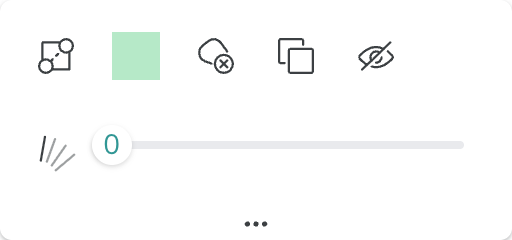
| Icon | Name | Description |
|---|---|---|
 | Ground | Fixes the link to its current position so it won’t move from it. |
 | Change Color | Opens a color menu for you to choose a color for the link from. Helps when dealing with many links. |
 | Clear Custom Shape | Clears the body, excluding the link part, if it is joined with a shape. This results in a custom shape and a regular link. |
 | Duplicate | Duplicates the link in its shape, color, and size. This includes if the link is joined via union with a shape. |
 | Show/Hide | Shows/Hides the link from view, making it invisible with only an outline of it and its joints showing. Converts to “show” if the link is hidden. |
 | Link Trace | Shows the traces of the link for valid the simulation. |
Click the three dots to open up the extra fields to turn on link trace using the slider.
Actuator Toolbar
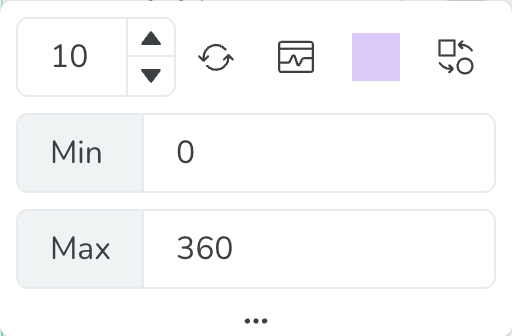
| Icon | Name | Description |
|---|---|---|
 | Reverse | Reverses the direction of rotation for the actuator from clockwise to counterclockwise and vice-versa. |
 | Open Actuator Chart | Opens the actuator chart for the selected rotary actuator. Serves as a useful shortcut rather than the panel. |
 | Change Color | Lets you change the color of the actuator by selecting from a color chart. |
 | Swap From/To | Swap which link is moving with respect to the other link. |
Click the three dots to open up the extra fields to manipulate the rotary actuator ranges: Min and Max.
Shape Toolbar

| Icon | Name | Description |
|---|---|---|
 | Change Color | Opens a color menu for you to choose a color for the shape from. Helps when dealing with many shapes or objects. |
| Duplicate | Makes a copy of the shape that is selected. |
 | Bring to Front | Brings the selected shape to the front increasing its number to the number of shapes on the screen. |
 | Send to Back | Sends the selected shape to the back decreasing its number to 1. |
 | Reset Transformation | Resets the shape's transformation so that the shape's geometry center is at origin. |
Geometry Toolbar
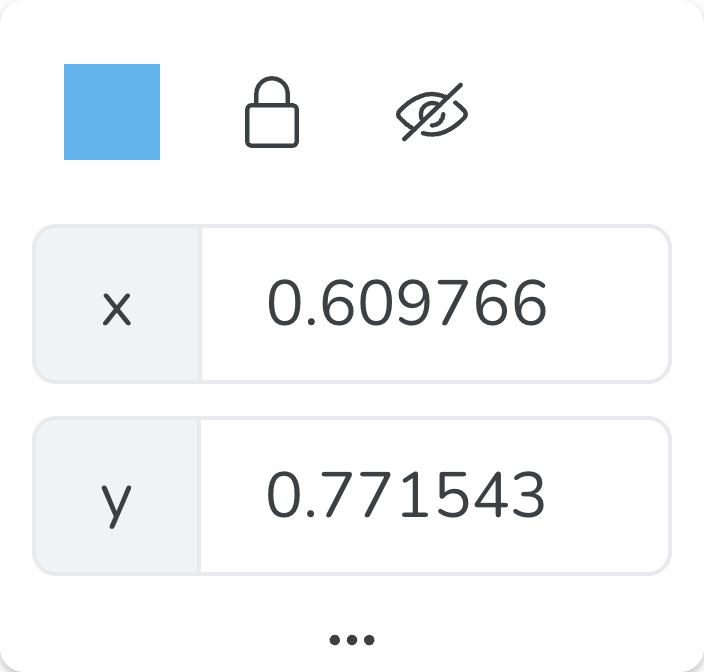
Geometry Point

Geometry Spline
Other Geometries
| Icon | Name | Description |
|---|---|---|
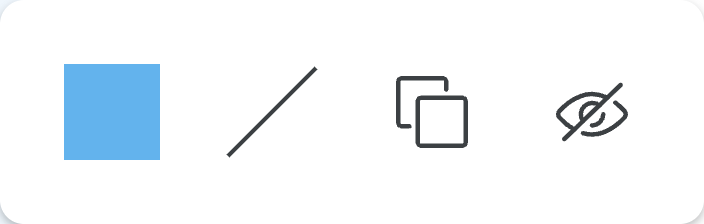
 | Change Color | Opens a color menu for you to choose a color for the geometry from. Helps when dealing with many geometries or objects. |
 | Stroke Style | Opens a stroke style meanu for you to update the stroke style of selected geometry. Helps when dealing with many geometries or objects. |
| Duplicate | Makes a copy of the geometry that is selected. |
| Lock/Unlock | Locks/unlocks the geometry point depending on its current state. If locked the coordinates of the geometry point are fixed. |
| Show/Hide | Shows/Hides the geometry object from view. Converts to “show” if the object is hidden. |
 | Show/Hide All Points | Shows/Hides all the geometry points of the geometry spline from view. Converts to “show” if the at least one point on the spline is hidden. |
For the toolbar of Geometry Point: click the three dots to open up the extra fields to manipulate the point position: x and y.